Tencil 0.7.0: measure spacing on the page
Measure an element’s spacing and send the numbers to your agent with your comment.
Inspect padding, margins and gaps
Turn on the ruler to see the hovered element’s padding, margin and flex or grid gap as you pick. Each value includes the Tailwind class that sets it.
Click the ruler button or press R to turn it on. It starts off. The project setting ruler, enabled by default, controls whether the ruler is available.
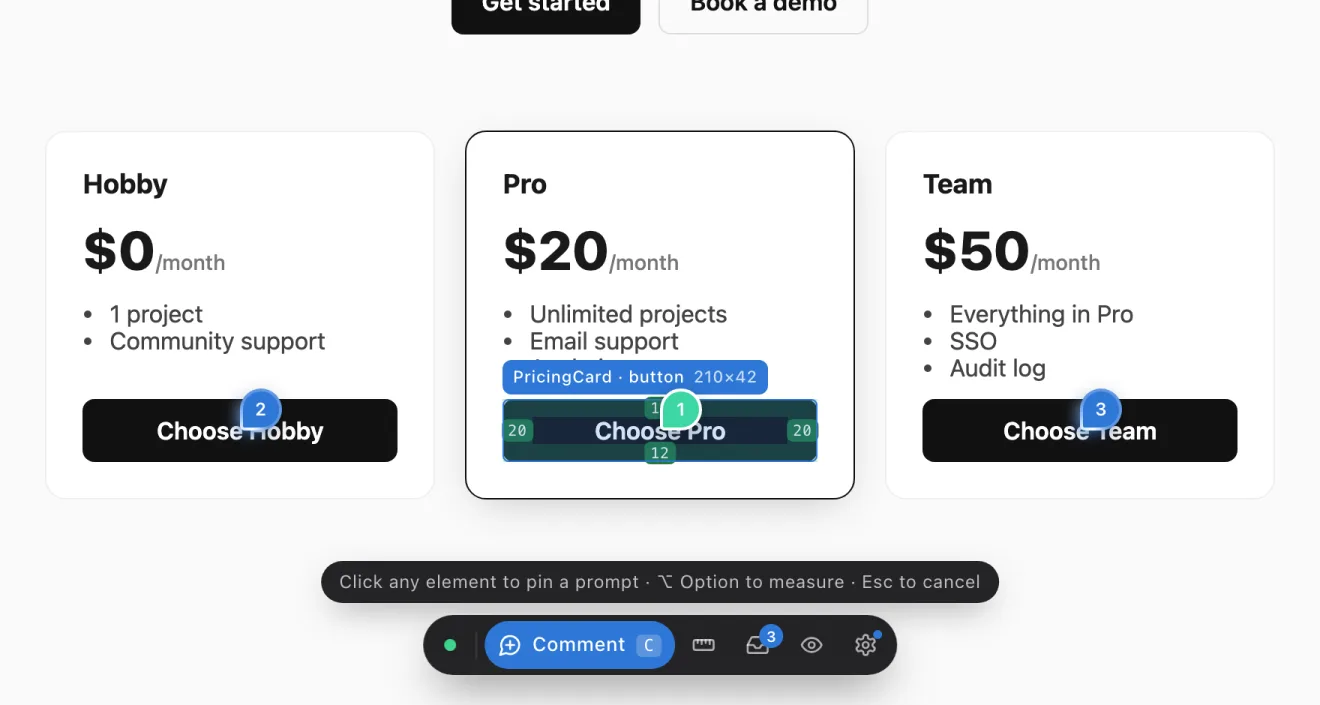
Measure distances with Alt
Hold Alt (Option on a Mac) to measure distances to an element’s parent. With a comment open, you can measure to any other element. Alt-click to include the distances in your comment, so your agent gets numbers alongside the request.
With the ruler on, you can also measure outside comment mode. Hold Alt anywhere, Alt-click to choose the element to measure from, then press C to comment with that spacing.
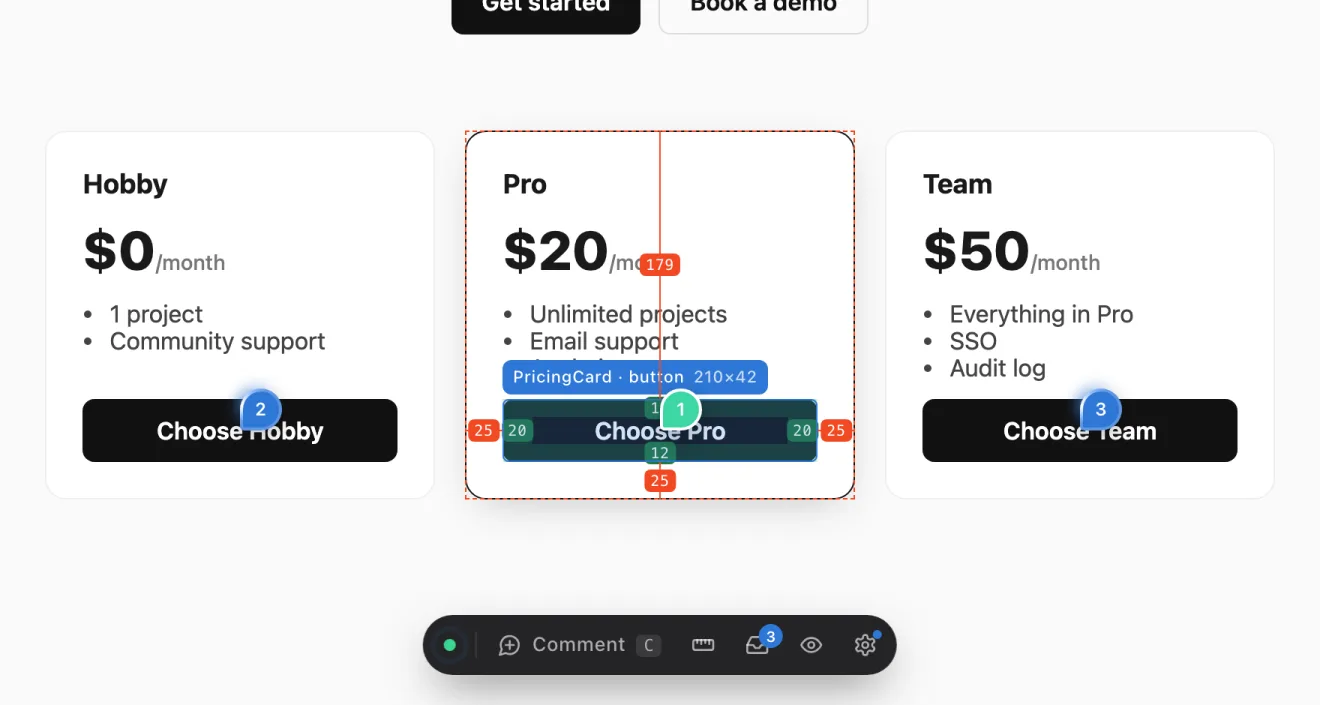
Include measurements in the agent’s prompt
Tencil includes the element’s box model and any measured spacing in the pin. Your agent receives both in its prompt.
Install or update Tencil
Run npx tencil in your project to get started. To update an existing install, run the command below. On Tencil 0.8.0 or later, you can also update from the overlay’s settings (About in 0.10.0 or later).
terminal
npx tencil@latest setup