Tencil 0.4.0: send comments as one batch
Send several comments as one thread, choose the agent and model, and move pins to another element.
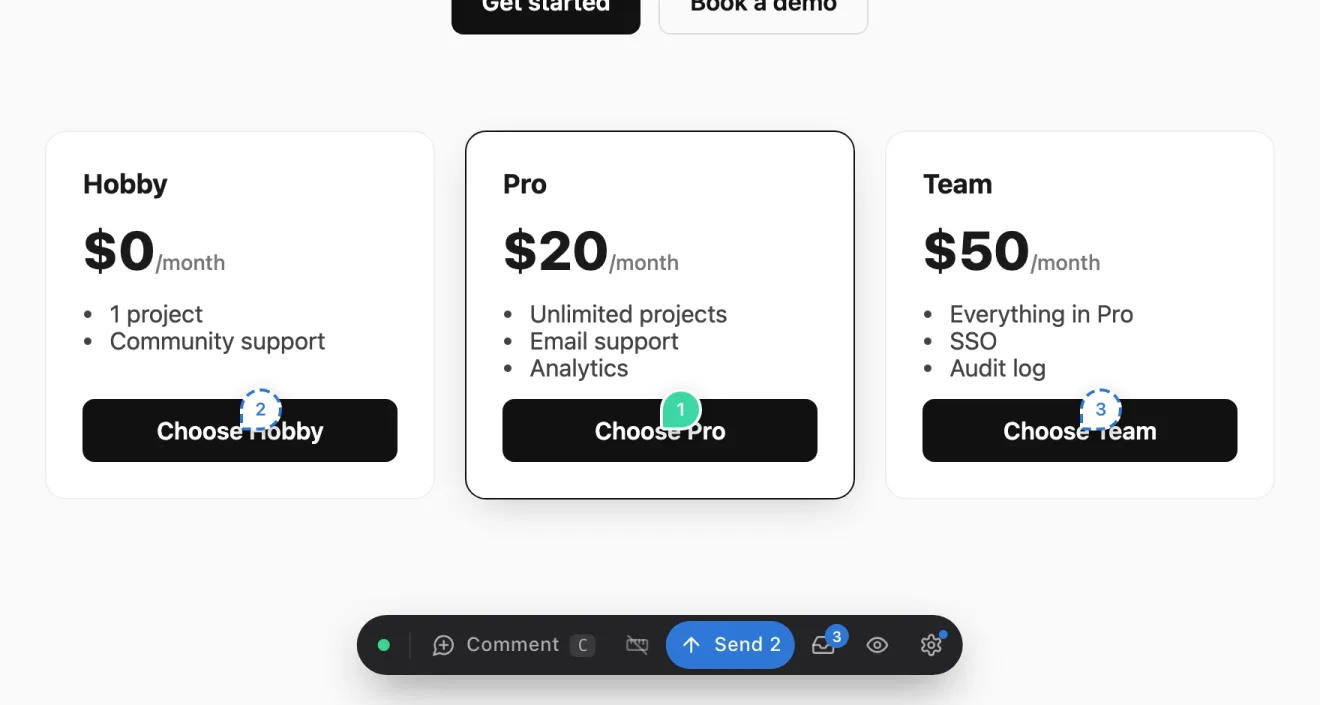
Send several comments as one thread
Use the batch toggle in the comment box to queue comments, then click Send in the toolbar. Your agent receives one thread with comments numbered to match the pins. Open any pin in the batch to read that conversation.
Queued comments survive a reload. Edit or delete them before sending. Batch mode is on by default; turn it off in the project’s settings to remove the toggle.
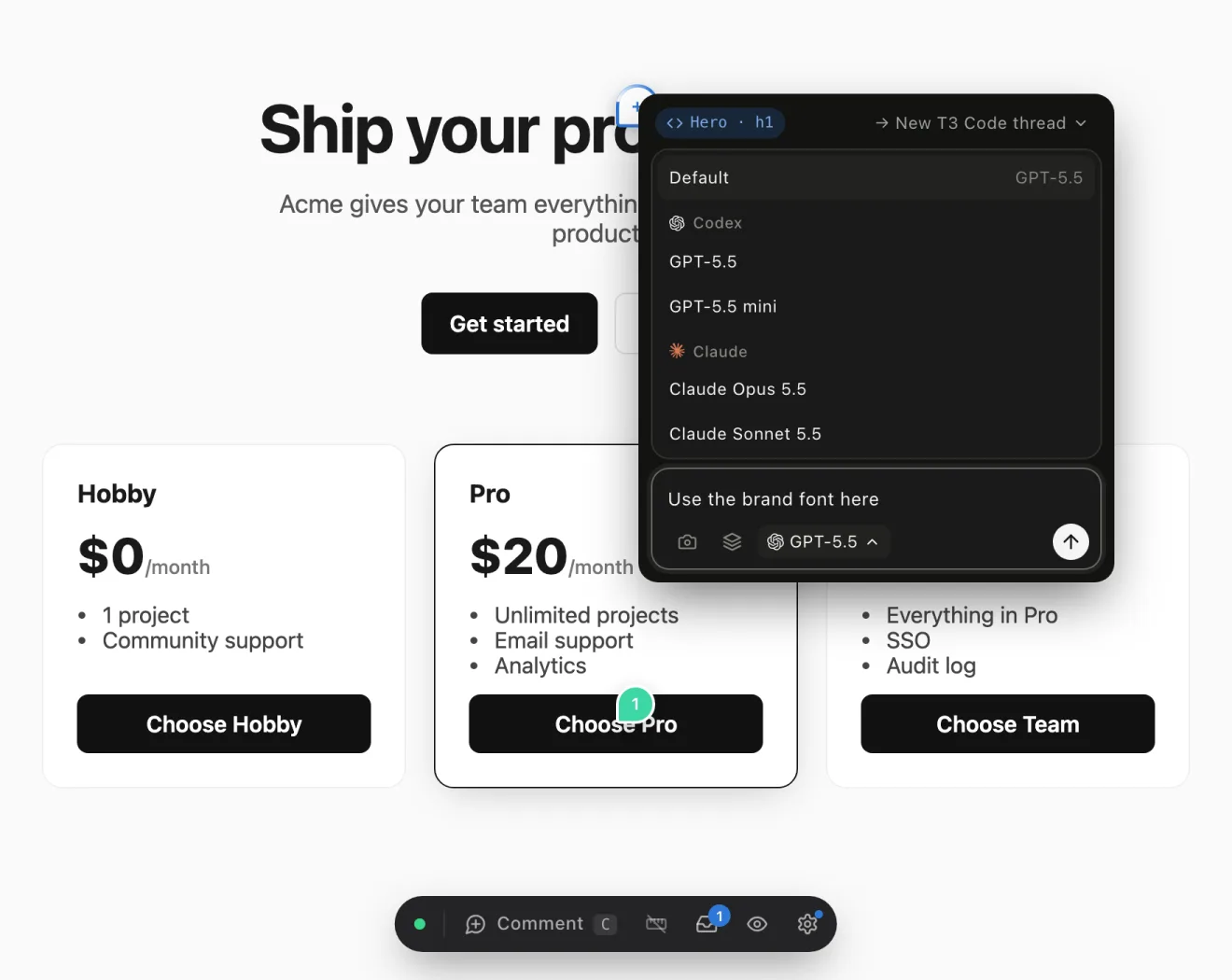
Choose an agent and model before sending
Pick the agent and model for a new pin in the comment box. Tencil saves your choice for the project.
Without a selection, T3 Code pins use T3 Code’s default model for the project, then its default for all projects. If neither is set, they use the model from your latest thread in that project. They no longer always start on Codex.
Move a pin to another element
Drag a pin onto another element to anchor it there. Pins also follow the page as you scroll. Threads open at the latest message and follow streaming replies, pausing when you scroll up to read.
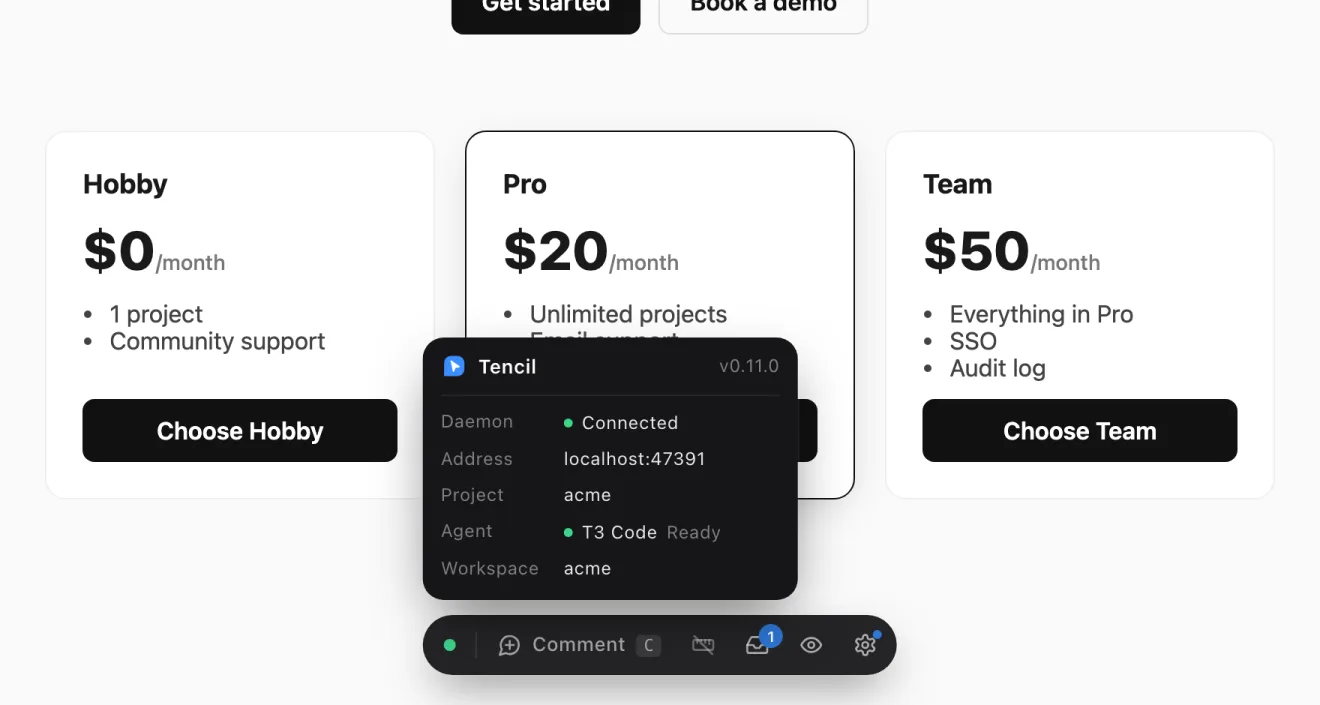
Check the page’s connection
Hover or focus the toolbar’s status dot to see the daemon’s address, the project connected to this page, and the agent’s current state.
More changes
- Tencil now uses the Apache License 2.0 in place of MIT.
- The toolbar sits beside the Next.js dev tools button when they share a corner, keeping both visible.
- Dragging the toolbar no longer stops halfway when you grab it over a link or image. Its landing animation finishes, and grabbing it mid-landing no longer makes it jump.
- Open settings from the toolbar. The panel appears beside it wherever it is docked.
Install or update Tencil
Run npx tencil in your project to get started. To update an existing install, run the command below. On Tencil 0.8.0 or later, you can also update from the overlay’s settings (About in 0.10.0 or later).
terminal
npx tencil@latest setup